This article provides information about how to Create, Submit, Withdraw and remove EDN from a CRN.
Overview
CRN allows you to combine multiple EDNs to obtain a single Consolidated Reference Number with which you can proceed your PRAs.
Procedure:
1. On the menu bar, take your cursor over the SHIPMENT tab.
It will open a hover with various module listings, one of which is CRN or Consolidated reference number. Click on this CRN module listing and it will open the CRN listing.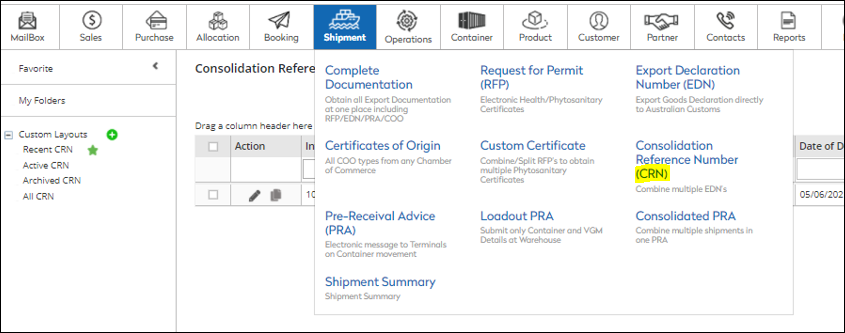
2. Now, Click on the “+ADD” button, this will give you a Pop-up as below to create and copy EDNs from various screens available in IMPEX DOCS. Users may choose accordingly from the options if applicable, else choose first option for fresh CRN.

3. If you choose “Add New”, the system will take you directly to the CRN screen where you can manually add the mandatory details of your EDN and submit it to get your CRN. Else if you use any other option such as “From RFP”, “From EDN”, and “From Shipment” the system will give you the listing of the respective modules to choose your EDN from, and once selected and applied it will add them to the created CRN screen, as shown below:
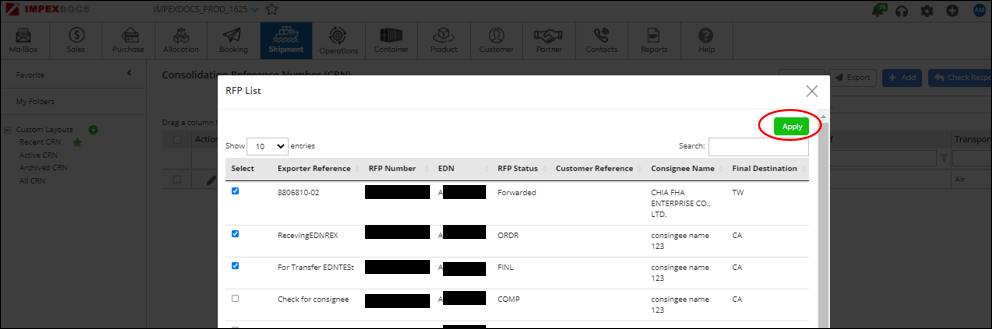
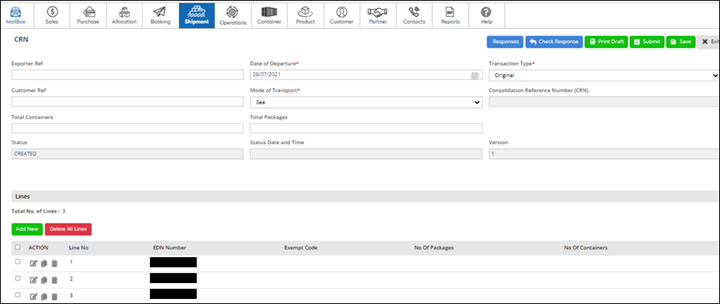
4. Once the CRN screen is created, fill out the header details and save the CRN document by clicking on the “SAVE” button. Once the CRN document is saved go to each EDN line by clicking on the EDIT pencil button and add all the mandatory details of that EDN.
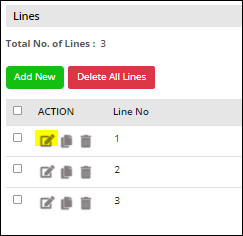

5. Once all the details are added click on the save line and submit the CRN as “Original” transaction type.
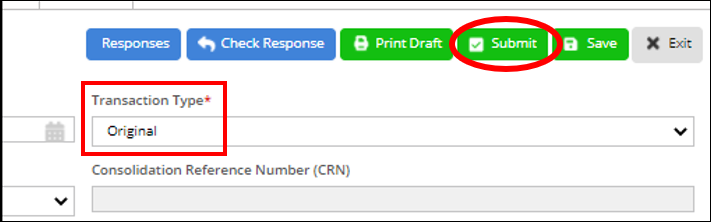
6. The status will move from “Created” to “Pending”. Click on “Check Response” after 4 - 5 mins the status will move to “Accepted” or “Rejected”.
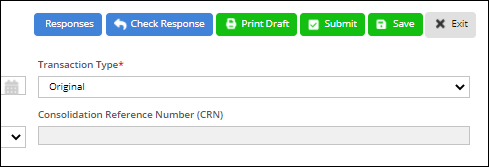
7. Users can view the reason for rejection on the “RESPONSES” button.
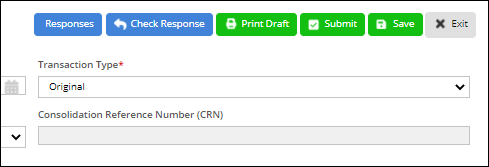
To remove EDN record from a CRN Follow the below steps:
- Edit the CRN line using the pencil button under the Action column.
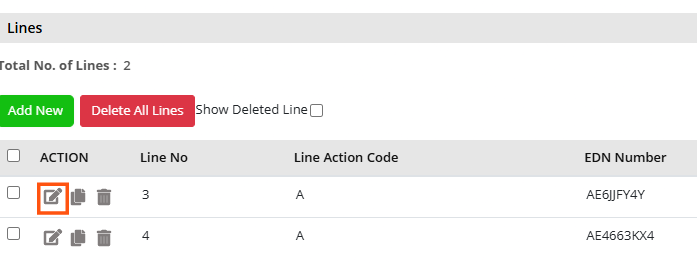
- Change the line action code to delete from the dropdown.
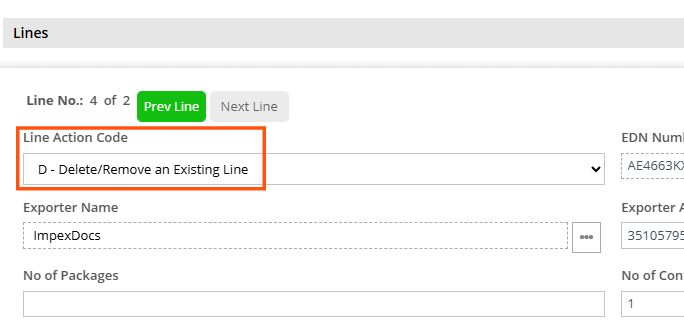
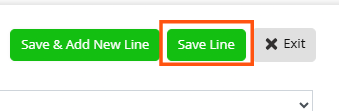
- Save the line.
- Now submit the CRN with transaction type as change.
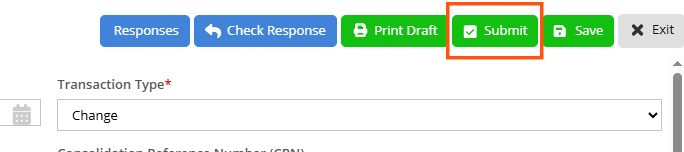
NOTE - This will remove the EDN from the CRN.
To Withdraw CRN.
- Using the similar steps mentioned above remove all the EDN lines from the CRN.
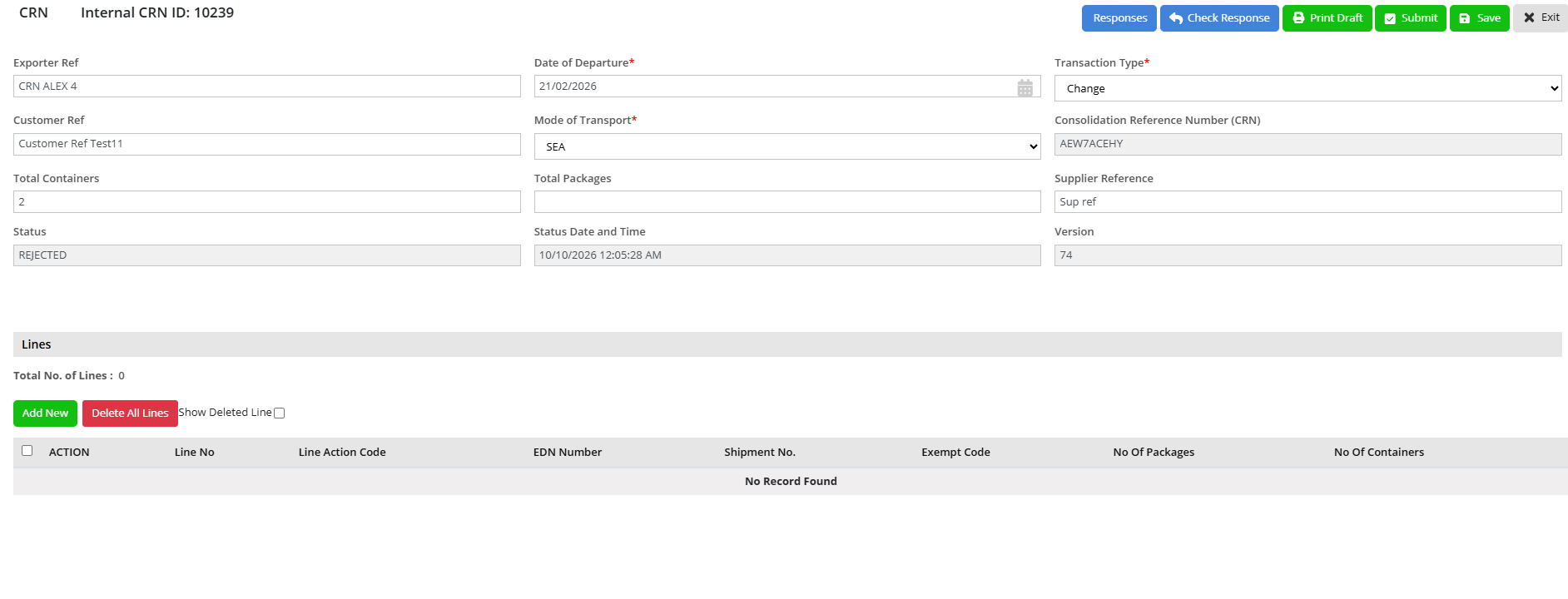
- Once all the EDNs are unlinked from the CRN.
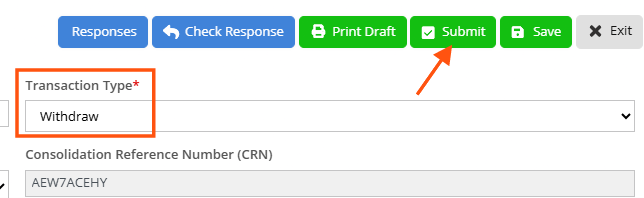
- Change the transaction Type to Withdraw from the dropdown and make the submission.
Was this article helpful?
That’s Great!
Thank you for your feedback
Sorry! We couldn't be helpful
Thank you for your feedback
Feedback sent
We appreciate your effort and will try to fix the article