Once the NEXDOC Meat move to production on 6th July, you cannot raise a RFP in old form (EXDOC). See below:
OLD EXDOC SCREEN:
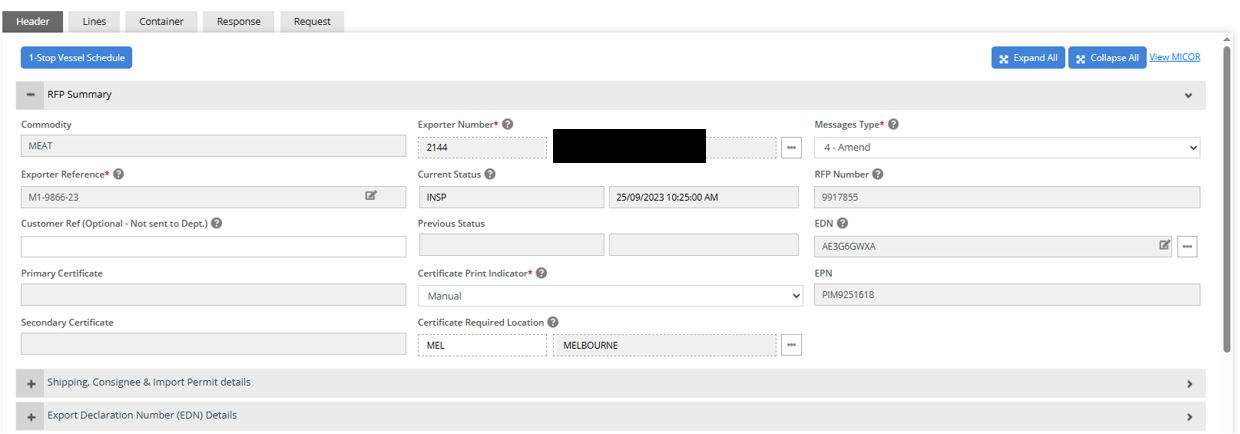
If you have any shipment created before the GO live date (6th July) and RFP still needs to be created or finalised than you may see the old form,as shown above.
(For new form and changes please review NEXDOC - MEAT Transition Screen Changes )
In this scenario you won't be able to progress the RFP however you need to follow the below steps to process the new RFP under NEXDOC.
NOTE: The NEXDOC new form is already configured behind the sceans and if you fail you get the new screen after following the below steps please raise a ticket to support for assistance.
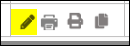
Step 1: Edit your Shipment record.
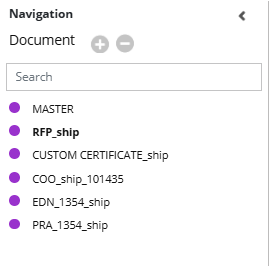
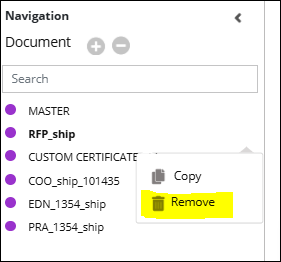
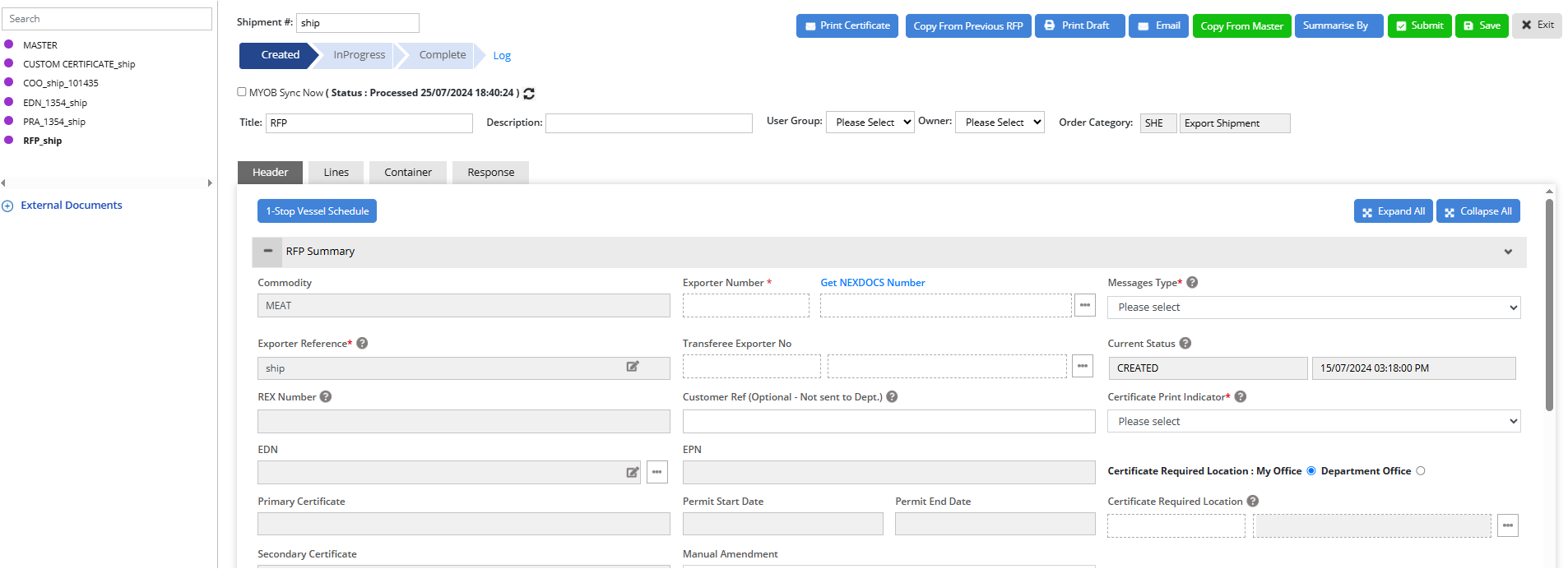
Step 2: Under the Navigation document list, you will find a document name "RFP_{ShipmentReference}"
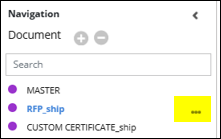
Step 3: Take your cursor over that document and a three dot icon will appear, click on the three dots and a dropdown with 2 option will show.
Step 4: Click on the Remove option and confirm.
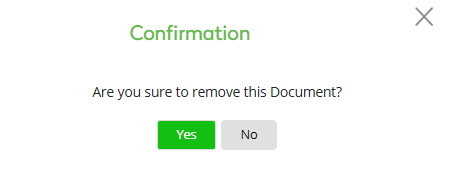
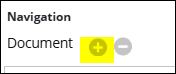
Step 5: Now once the document is removed, click on the plus icon next to Navigation document
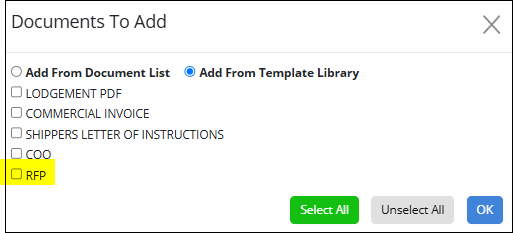
Step 6: "Documents to add" popup will apear and you will see an option RFP. Select the document and click OK.
Step 7: Once the document is added, click on the document and you will see a new RFP NEXDOC form.
Was this article helpful?
That’s Great!
Thank you for your feedback
Sorry! We couldn't be helpful
Thank you for your feedback
Feedback sent
We appreciate your effort and will try to fix the article